On this page we explain how you receive, confirm, ship and invoice your buyers' orders in the new Order Manager — one order from start to finish, without your own EDI system.
Go to My Onetrail and log in. Your username and password are provided by Onetrail by email. Open the Orders tab — you are now in the Order Manager. Your seller company and its GLN are shown at the top right.
Every order moves through the same four stages, and each stage you complete sends a message back to your buyer: Received → Confirmed → Shipped → Invoiced. You don't have to do them all at once — an order waits at its current stage until you act on it.
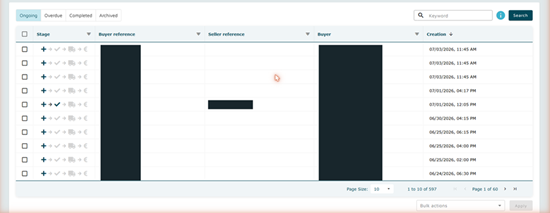
The Orders screen lists every order for your company. The four category tabs at the top left split them up:
Use Search by keyword (top right) to jump straight to an order by reference, and filter any column from its header. The Stage column is the quickest read: its four icons light up left to right as an order progresses, so you can see at a glance what still needs doing.
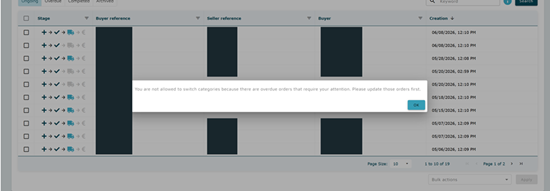
If your company has overdue orders — confirmations past their scheduled delivery date — the Order Manager opens on the Overdue tab and won't let you switch tabs until those are dealt with. The block is company-wide, so a colleague's overdue orders hold you back too. Clear it by opening each overdue order and updating its confirmation. |
Click any row to open the order. The status sits under the order number (for example Not acknowledged), with the Stage track top-right and the next-action buttons along the bottom.
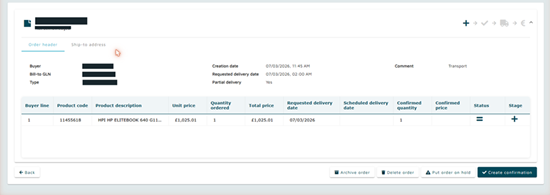
The Order header holds the order-level facts: buyer and bill-to GLN, order type, creation and requested delivery dates, whether partial delivery is allowed, and any comment. Each order line shows the product, unit and total price, quantity ordered and requested delivery date — and gains a scheduled date, confirmed quantity and confirmed price once you confirm.
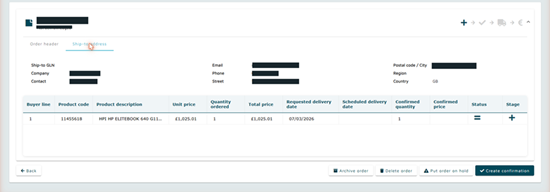
The Ship-to address tab shows where the goods go — GLN, company, contact, address and country. Check this before you despatch.
Confirming tells your buyer you accept the order and on what terms. It sends an order response and moves the order to Confirmed.
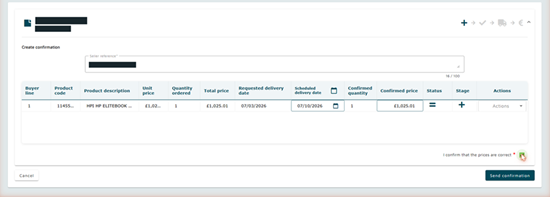
Seller reference, a scheduled delivery date on every line, and the prices-are-correct checkbox. The form won't send until all three are set. |
If the values you send back match the order, its status becomes Confirmed. If anything differs — a changed price, a split line, or a delivery date later than requested — it becomes Confirmed with changes, and your buyer sees exactly what you altered. |
Creating a shipment tells your buyer the goods are on their way. It sends a despatch advice and moves the order to Fully shipped.
Shipping needs at least one carrier set up for your company — the Transported by list is drawn from your configured carriers. If it's empty, ask your Onetrail contact to add your carrier(s) first. |
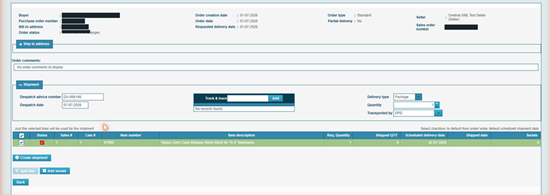
The dialog reminds you to check the lines and quantities and warns that a shipment cannot be changed once confirmed. It also flags if you're shipping without track & trace keys. If quantities are wrong, use Split line before confirming. |
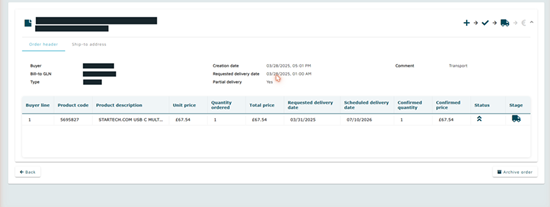
The final stage bills your buyer. Once an order is shipped, a Create invoice action becomes available; completing it sends the invoice and moves the Stage track to its last node. The order then appears under Completed as Fully invoiced.
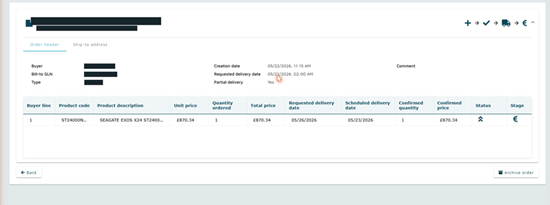
That's the full loop — received, confirmed, shipped and invoiced. Your buyer has had a structured message at every stage, with no EDI system needed on your side. |
Stage | Your action | Message sent |
|---|---|---|
Received | Review the order | ORDER |
Confirmed | Create confirmation | ORDER_RESPONSE |
Shipped | Create shipment | DESPATCH_ADVICE |
Invoiced | Create invoice | INVOICE |
Next time you sign in, the top-right corner of My Onetrail shows the status of your products and orders. The Check orders button links straight to your orders in progress, and the dashboard carries news and maintenance notifications.
Any questions about processing your orders? Contact Onetrail Customer Care via our support page — we're happy to help. If you don't have a Servicedesk account yet, request one by emailing support@onetrail.com.